Match review
CS2 TrueView Explained: What Your Demo Can Show
Understand CS2 TrueView, version mismatches, and slow-motion limits, then record demo observations without overreading a single frame.
Sources checked .
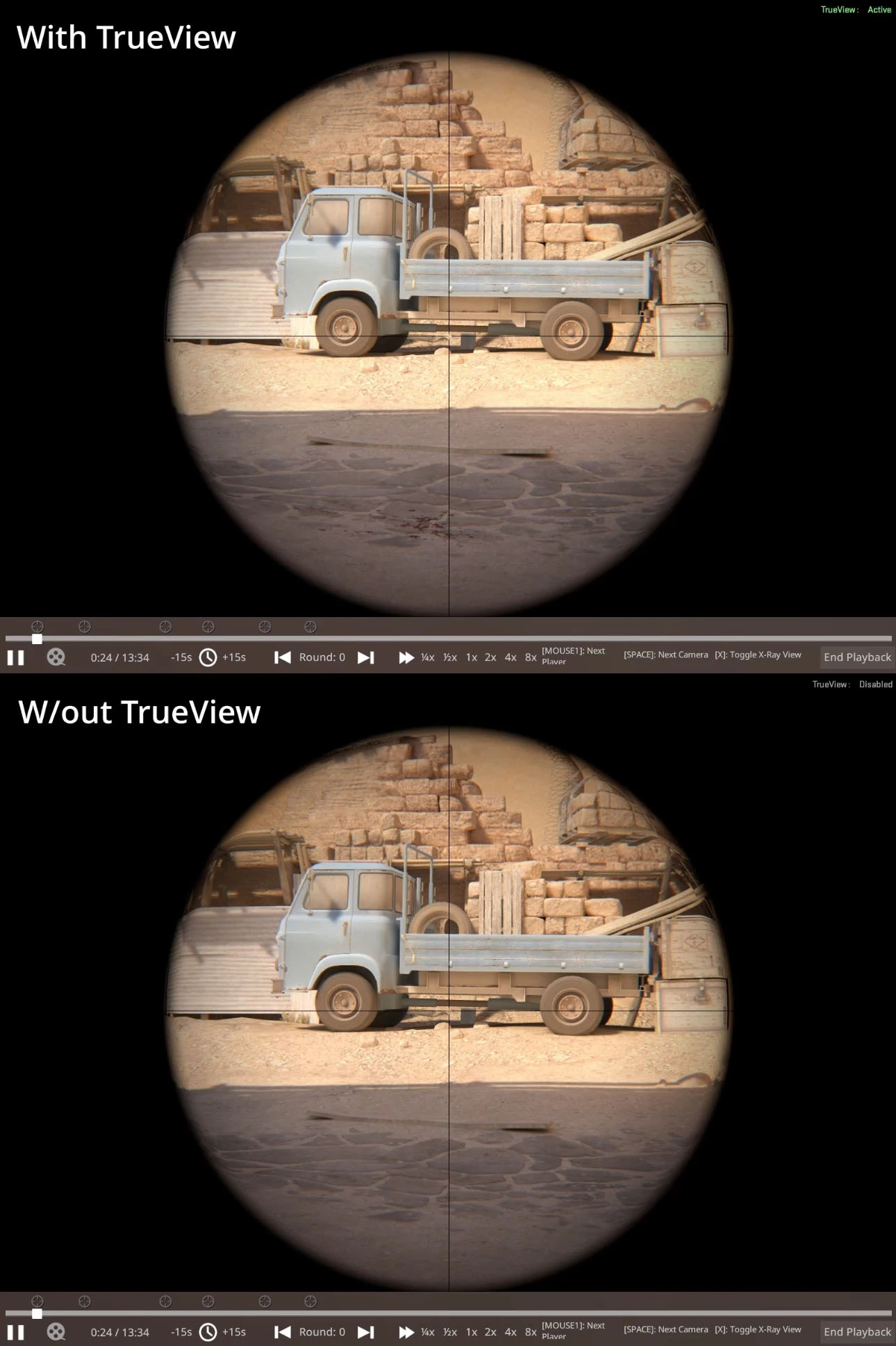
TrueView makes a CS2 demo closer to the observed player's view, but it does not turn the demo into a screen recording. Before drawing a conclusion from an odd-looking shot, record which replay you are watching and what its playback can actually establish. This short workflow helps you keep a useful observation separate from an uncertain visual detail.
What TrueView reconstructs
Valve's Introducing TrueView announcement explains that TrueView reruns the observed player's client-side prediction. Earlier demo playback represented the server's view without accounting for network latency. TrueView also reproduces Damage Prediction when the observed player had it enabled.
There are two important limits: TrueView is disabled by default when recording and playback game versions do not match, and playback can still differ from what the player originally saw, particularly in slow motion. Valve notes that the timing of damage effects can differ because of the way CPU and GPU work is processed.
1. Label the playback conditions
Create a note with the match or file name, recording date, round, player perspective, and moment you want to inspect. Record whether you can verify the recording version and playback version. If you cannot, write “version match unknown”; a recent date alone does not establish a match.
Keep the question narrow. “Did I expose myself before my teammate arrived?” gives you a sequence to inspect. “Does this one frame prove why the shot missed?” asks more of the replay and needs much more care. These are different questions even when they concern the same fight.
2. Start with the surrounding sequence
Watch the relevant action at normal speed first, including a few moments before and after it. Write down the visible sequence without explaining it yet: moved from cover, aimed toward doorway, fired, returned to cover. This creates a reference you can compare with your closer inspection.
When you slow playback using the controls available in your current client, return to the same player perspective and moment. Note what became easier to see and what is still unclear. Treat slow motion as another view of the sequence, not automatic confirmation of your first impression.
3. Separate observation from interpretation
Use two short lines. Observation: what is visible or audible in the playback. Interpretation: what you think it means. Add a third line for information you cannot verify, such as the exact playback conditions. This keeps an assumption from quietly becoming a fact when you revisit the note.
For example, “The damage effect appears after the crosshair moves” describes playback. “The game registered the wrong moment” is a separate claim that the visual sequence alone does not establish. Do not erase the observation; keep the conclusion proportionate to the evidence.
Worked example: preserve the useful lesson
An illustrative note might read: “Round 8, first doorway fight. Version match unknown. I left cover before the teammate reached the doorway. A slow-motion damage effect looked unusual, but I cannot use it to establish the original frame timing.” The actionable follow-up is to inspect the spacing and movement sequence again, without needing to resolve every visual detail.
For a broader decision review, continue with the three-round demo checklist. If that review reveals a repeatable execution task, carry it into the 12-minute practice routine.